

How to Set Up PandaVPN on Android TV to Unlock Global Streaming
 Sharon
  2026.04.18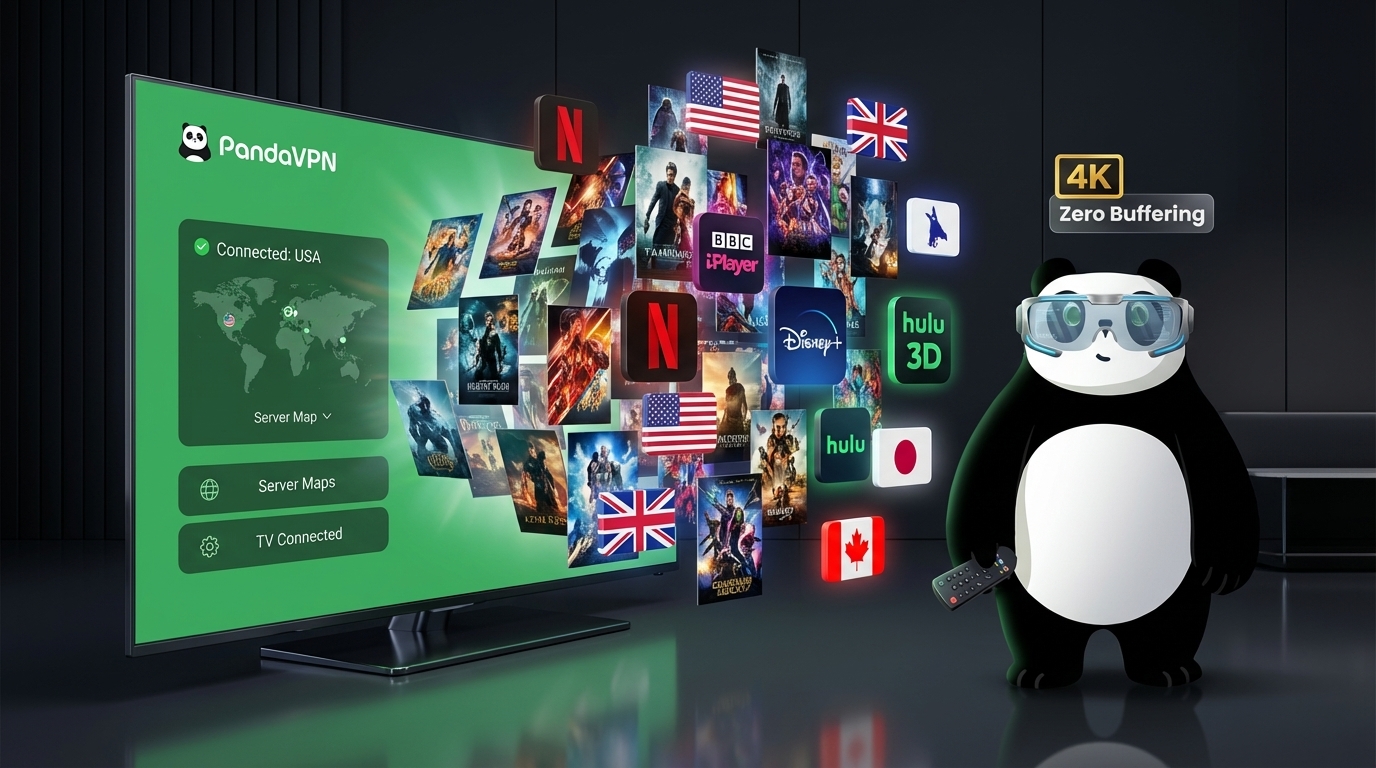
In today’s streaming-first world, your Android TV should give you access to global entertainment—not restrict it. Yet geo-blocks often stand between you and the content you want, whether it’s exclusive Netflix libraries, regional sports, or international shows.
The solution? A powerful, optimized VPN built specifically for streaming—PandaVPN.
This guide will show you exactly how to configure PandaVPN on your Android TV and unlock a world of limitless content in minutes.

Why PandaVPN is Perfect for Android TV
Not all VPNs are built the same—especially when it comes to streaming on a big screen. PandaVPN stands out with features tailored for high-performance home entertainment:
🚀 Lightning-Fast Streaming Speeds
With 3,000+ global servers and proprietary acceleration technology, PandaVPN ensures ultra-smooth playback—even in 4K—on platforms like Netflix, Disney+, and Hulu.
🔐 Advanced ECC Encryption
PandaVPN uses next-gen Elliptic Curve Cryptography (ECC) to protect your connection. This prevents ISP throttling and keeps your viewing habits completely private.
🕵️ Strict No-Logs Policy
Your data stays yours. PandaVPN does not track, store, or share your activity—ensuring full anonymity online.
📺 Android TV-Optimized Interface
Designed specifically for TV navigation, PandaVPN’s interface works seamlessly with your remote—no keyboard or mouse required.
Step-by-Step: Set Up PandaVPN on Android TV
Getting started takes less than 3 minutes. Here’s how:
1. Create Your Account
Visit the official PandaVPN website and sign up using their anonymous digital account system.
💡 Pro Tip: Watch for promotions like “12 Months + 12 Months Free”, offering premium access at a very low monthly cost.
2. Install PandaVPN on Your TV
You have two options:
Option A: Google Play Store (Recommended)
- Open the Play Store on your Android TV
- Search for “PandaVPN”
- Click Install
Option B: APK Installation (For Restricted Regions)
- Download the APK from the PandaVPN website on your computer
- Transfer it to a USB drive
- Plug into your TV and install manually
3. Connect to a Server
- Launch PandaVPN and log in
- Choose a server:
- Use Smart Connect for the fastest option
- Or manually select a country (e.g., USA, UK, Japan)
- Click Connect
- Once the panda icon turns green, you’re secured and ready to stream
🎬 That’s it—you now have global access to streaming content.
Unlock Global Streaming Platforms
With PandaVPN, you can instantly access region-specific libraries:
- 🇺🇸 US Netflix for exclusive shows and movies
- 🇬🇧 BBC iPlayer for British content
- 🇯🇵 Japanese anime libraries
- 🌍 International sports and live events
No more “This content is not available in your region.”
Advanced Features for Better Control
PandaVPN isn’t just plug-and-play—it’s built for power users too:
🌐 Smart Mode
Only routes international traffic through the VPN while keeping local apps fast and accessible.
🔄 Multi-Device Support
Use one subscription across your Android TV, smartphone, laptop, and more.
🚫 Geo-Restriction Bypass
Access global content libraries without detection or interruptions.
Troubleshooting Tips
If you run into issues, here are quick fixes:
- Login Error / Network Issue:
Check your internet connection is active - Connection Fails in Restricted Regions:
Switch to Global Mode in settings - Slow Streaming Speed:
Try switching to a different server or use Smart Connect
Final Thoughts
Your Android TV has the power to deliver world-class entertainment—but without a VPN, you’re only seeing part of the picture.
With PandaVPN, you remove digital borders, protect your privacy, and enjoy seamless, buffer-free streaming from anywhere in the world.
🎉 Ready to unlock everything your TV can offer?
Get PandaVPN today and enjoy a risk-free experience with a 7-day money-back guarantee.
Your global streaming experience starts now.

Related Posts

Featured Posts