

How to Download and Install PandaVPN on macOS
 Sharon
  2026.10.19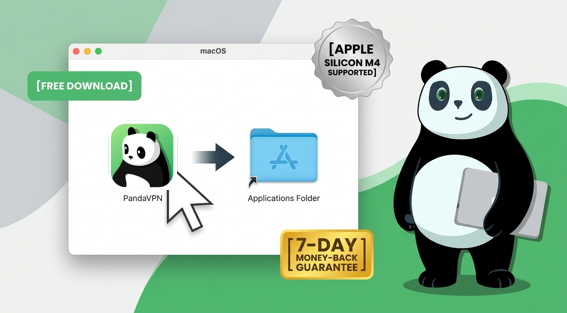
Looking for a simple way to protect your internet connection on your Mac? PandaVPN for macOS offers a convenient way to encrypt your network traffic, enhance your online privacy, and connect to VPN servers in different locations.
Whether you use a MacBook or a desktop Mac, getting started is straightforward. You can download PandaVPN directly from the official macOS download page, install the app, and connect to a server in just a few steps.
PandaVPN for macOS is available through direct download from the official website rather than the Apple App Store. Downloading directly from the PandaVPN official website also gives you access to exclusive discounts, the best available pricing, and current subscription offers.
Follow these three simple steps to download, install, and start using PandaVPN on your Mac.

Step 1: Sign Up and Choose a Subscription Plan
- Visit the PandaVPN official website.
- Browse the available subscription plans and select the option that best suits your needs. Check the website for exclusive discounts, special promotions, and the best available pricing.
- Follow the on-screen instructions to create your account, receive your digital account ID, and set your login password.

If you already have a PandaVPN account, you can skip this step and proceed directly to the download page.
Step 2: Download and Install PandaVPN on macOS
1. Open the official macOS download page.
Visit the PandaVPN for macOS download page to get the latest installation package.
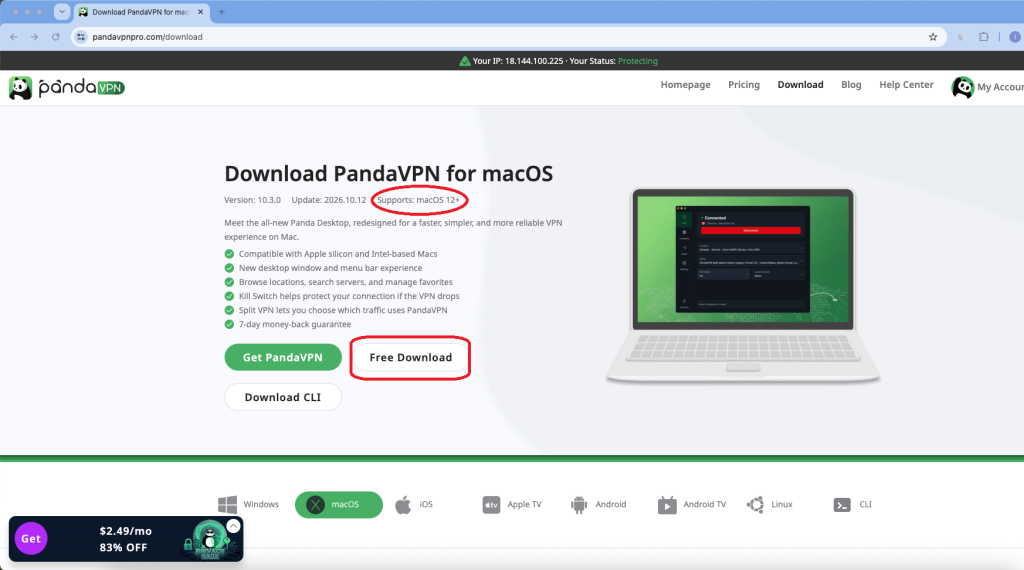
The current download page lists support for macOS 12 and later. PandaVPN is compatible with Apple Silicon Macs, including M1, M2, M3, and M4 models, as well as Intel-based Macs, according to the stated compatibility requirements.
Click the Free Download button to download the installation package.
3. Open the downloaded installation file.
Once the download is complete, locate the file in your Downloads folder and double-click it to open the installer.
4. Drag PandaVPN into the Applications folder.
When the installation window appears, drag the PandaVPN app icon into the Applications folder. Wait for the copy process to finish before launching the app.
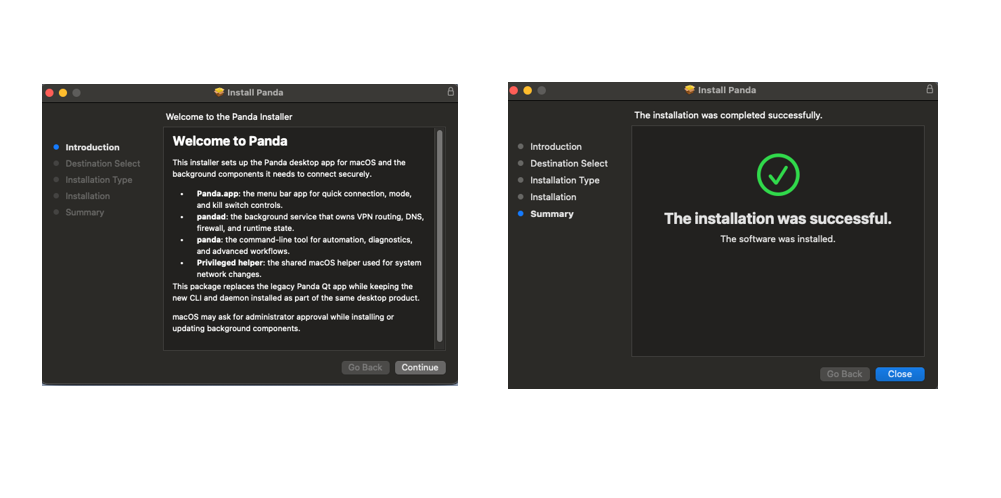
5. Complete any required macOS permission prompts.
Depending on your Mac and the installation process, macOS may ask you to authorize changes or approve network-related permissions. Review each prompt carefully and enter your Mac administrator password when required.
If macOS displays a security warning, make sure the installer came from the official PandaVPN website before proceeding.
Note: macOS prompts can vary by system version and installation method.
Step 3: Launch PandaVPN and Connect to a Server
1. Open PandaVPN.
After installation, open Finder → Applications, locate PandaVPN, and double-click the app to launch it.
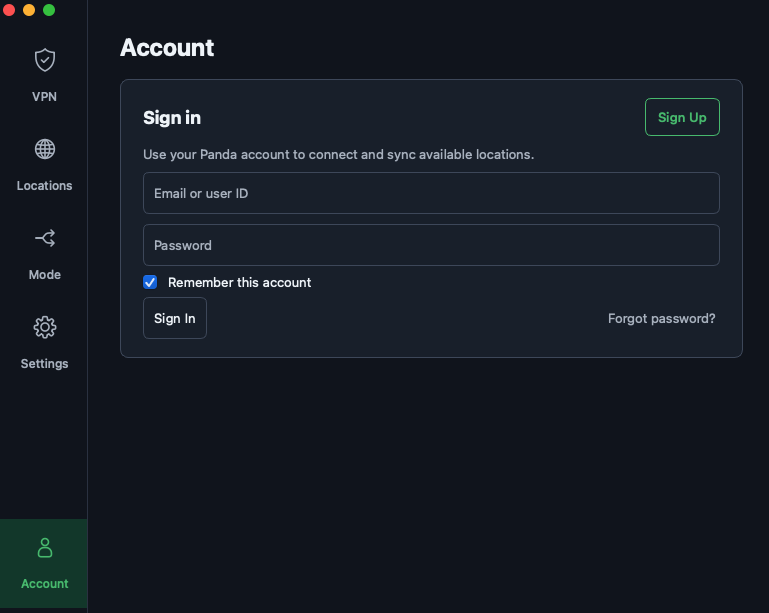
2. Sign in to your account.
Enter your PandaVPN digital account ID and password to sign in.
3. Choose a server and connect.
Click the connection button to connect automatically, if that option is available in your version of the app. Alternatively, browse the available server locations and select your preferred region.
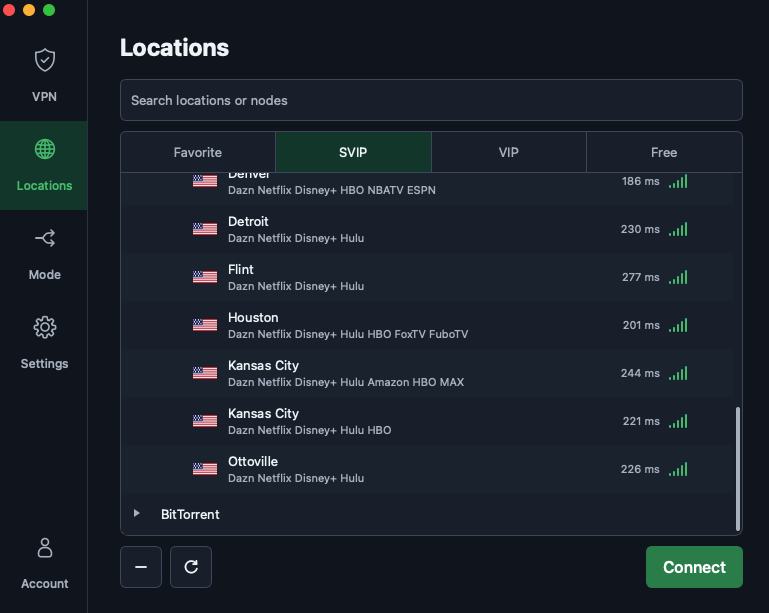
Once PandaVPN confirms that the connection is active, your internet traffic will be routed through the VPN tunnel. For everyday browsing, a nearby server may offer a good balance between speed and latency. Actual performance depends on your network conditions, server load, and routing.
Frequently Asked Questions (FAQ)
Can I install Panda Desktop and older versions such as Panda-Qt on the same Mac?
You may be able to keep both clients installed during a transition, depending on compatibility. However, avoid connecting through multiple VPN clients simultaneously, as their network settings may conflict. Disconnect the older client before connecting with Panda Desktop.
Is PandaVPN available through the Apple App Store?
The macOS version described in this guide is distributed through direct download from the official PandaVPN website rather than the Mac App Store. Visit the official macOS download page for the latest installation instructions.
Which macOS versions does PandaVPN support?
The official download page lists support for macOS 12 and later. Check the page for the latest compatibility information before installing the app.
Is there a money-back guarantee if I change my mind?
Yes. PandaVPN offers a 7-day money-back guarantee on eligible plans. Review the current subscription terms on the official website for eligibility details and applicable conditions.
Download PandaVPN for macOS
Setting up PandaVPN on your Mac is simple: choose a subscription plan, download the official installer, drag the app into your Applications folder, and sign in to connect.
Download PandaVPN directly from the official website to access the latest macOS version, exclusive discounts, and available subscription offers.

Related Posts


Featured Posts